Sending feedback to an agent
Notes on the lines or files you want changed, collected beside the review and handed to the agent's session after you have seen exactly what goes where.
In a worktree’s review, a note goes on the lines it is about, or on a whole file, and the notes go to the agent together, as one message.
Writing a note
Click or drag in the line numbers to select lines; Shift extends the
selection, Command-click adds or removes a line, and Escape clears it. Then choose
Annotate…, press Return, or use Repository ▸ Annotate… (⌃⇧⌘A). The note
opens on the right, in the Feedback inspector, and is saved as you type;
⌘↩ closes it.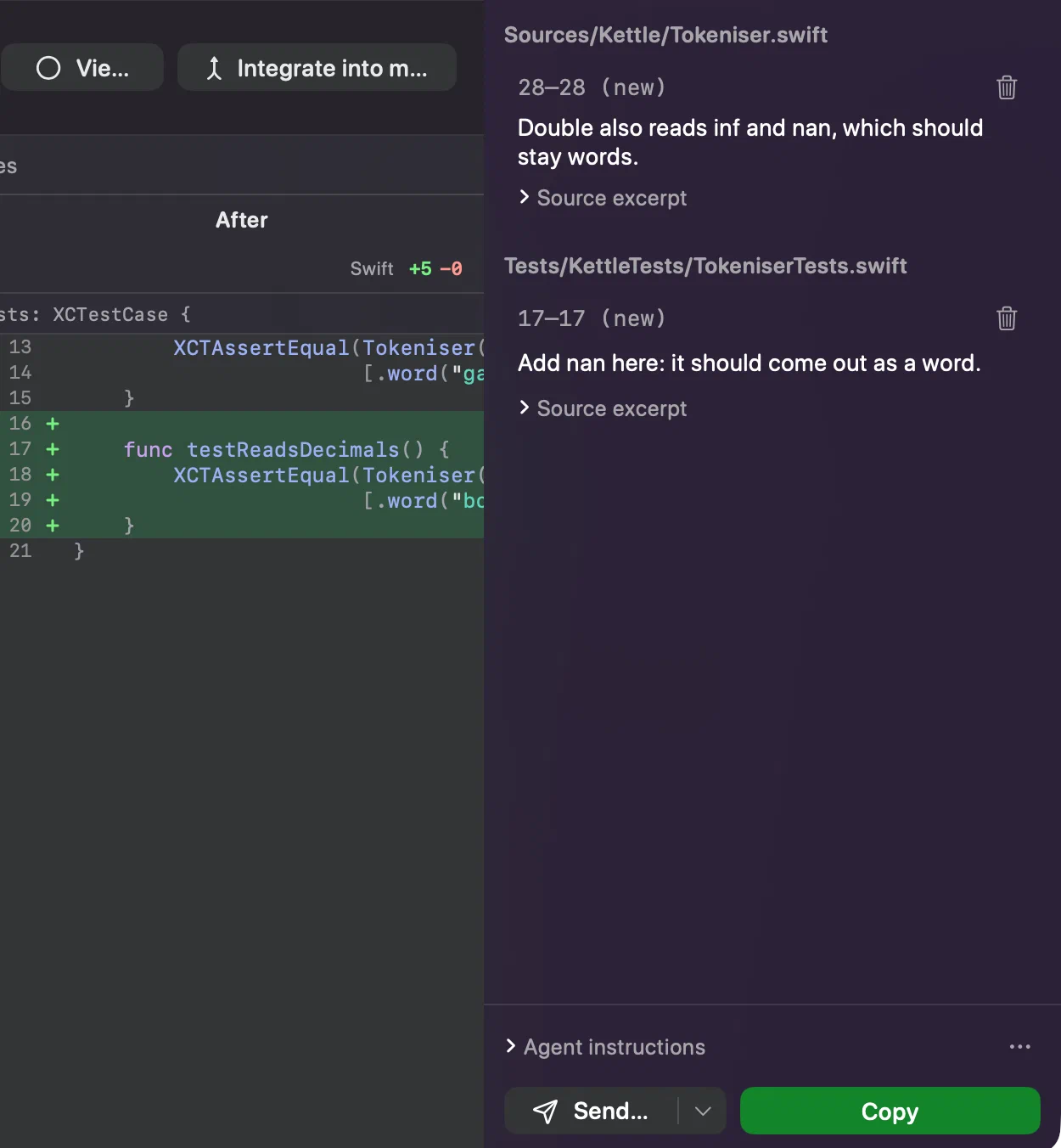
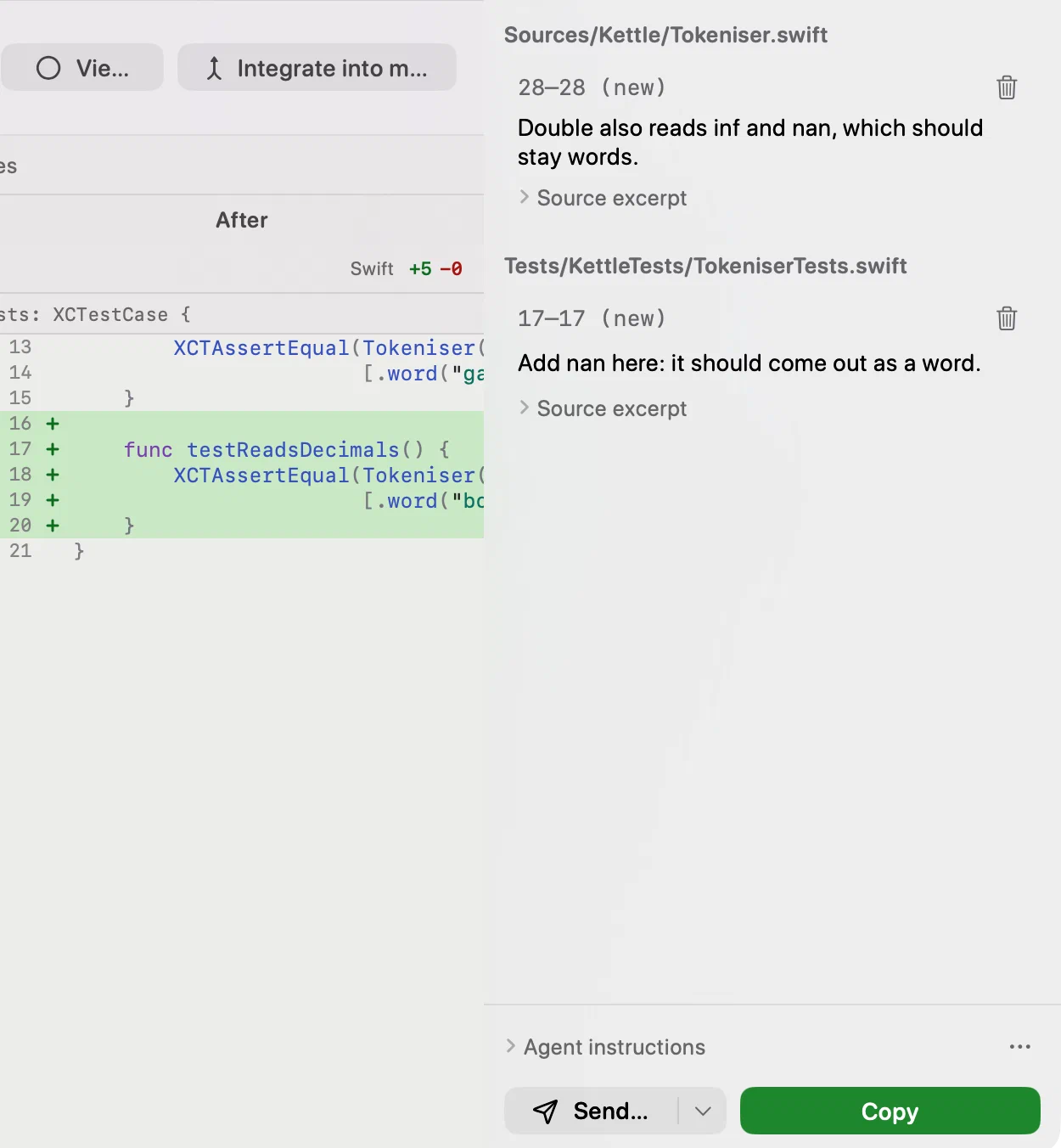
Repository ▸ Feedback… (⌃⇧⌘F) shows the inspector, and its toolbar button (⌥⌘I) shows or hides it. Notes are sorted by file and line: click one’s text to edit it, its reference to go back to the lines. They stay on your Mac, with the review, until you hand them on.
A note on a whole file
Annotate File…, at the top of the diff (a speech bubble when the window is narrow) or in a file’s menu in the list, opens a note on the whole file rather than on some of its lines, and so does Repository ▸ Annotate… (⌃⇧⌘A) with no lines selected. In the inspector it comes first among its file’s notes, with Whole file as its reference. It carries no lines and no excerpt: only the file’s path goes to the agent. A file has one such note, and choosing it again for that file reopens it.
Handing them on
The message is the agent instructions and then every note, numbered, with
its file, its lines and the code it is about; a whole-file note gives its path
followed by (whole file), and none of the file’s text. The instructions start as
Innesta’s — “Apply the changes requested in the review notes below, checking
them against the current code.” — and can be edited for one review, which then
says Edited for this review. Their menu has Save as Default, for
every review in every repository, and Reset to Default.
- Copy puts the message on the clipboard, for anything else.
- Send to Agent… lists the worktree’s sessions that can take it, and under New Session starts Claude Code or Codex with the message pre-filled. With exactly one session that can take it, the button sends to that session — Send to Claude Code…, or Send… where the inspector is narrow — and its arrow keeps the list. Listing sessions needs Show live agent status.
Nothing is sent before a confirmation that shows the session, its folder and
its ID, the notes, and the full message. A message too long to pre-fill in a
new session is copied in full first, to paste.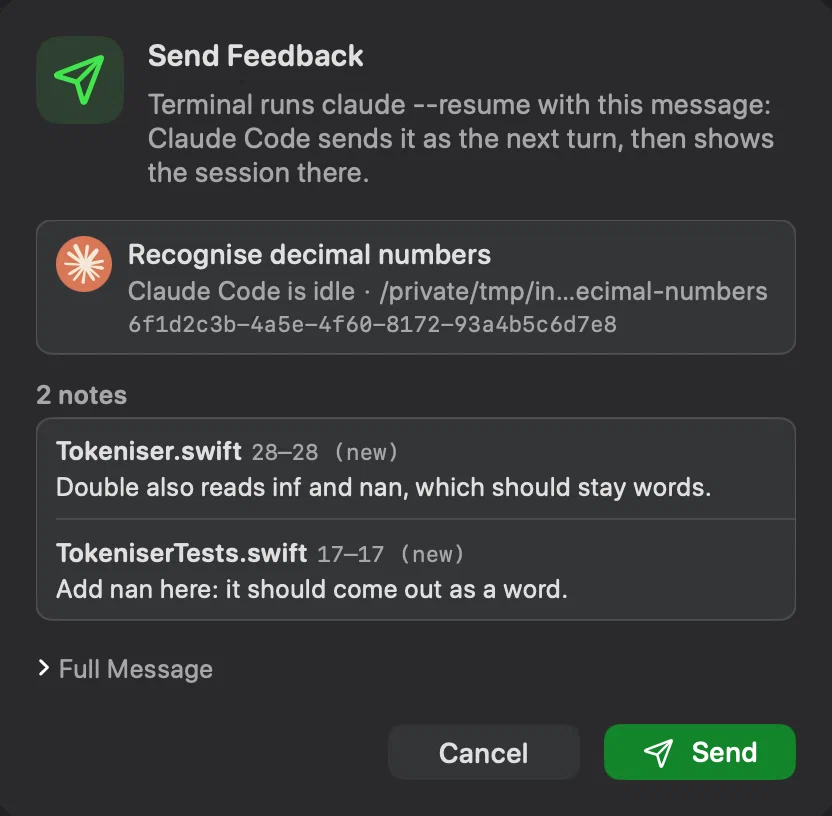
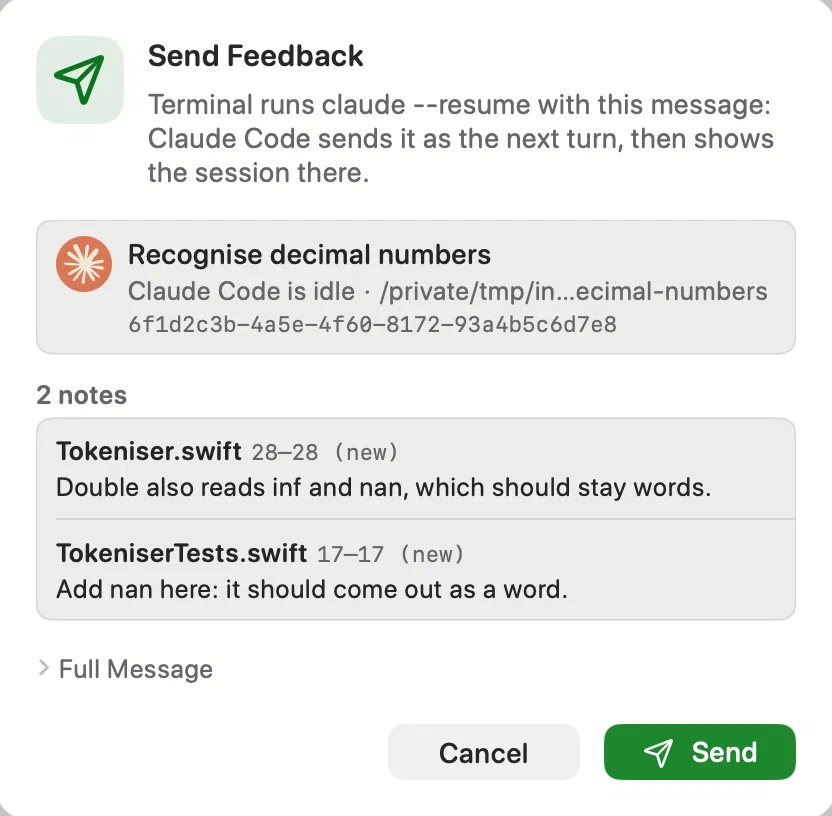
How it arrives depends on the session, and the confirmation’s button says which:
| Session | Button | What happens |
|---|---|---|
| A Codex conversation | Send | Codex queues it: an idle conversation starts on it, a busy one after its current turn |
| Claude Code running in the background | Send | a new terminal tab resumes the session with the message as its next turn |
| Claude Code in Ghostty 1.4 or later | Paste | the message is pasted into Claude Code’s prompt, unsent: Return is yours |
| Claude Code in Terminal, iTerm, Claude or Visual Studio Code | Copy and Show | the message is copied and the session brought forward, to paste |
A Claude Code session waiting for your answer is listed but cannot take the message until you answer it. If Codex or the terminal does not answer in time, Innesta says so rather than guessing.
Sent
Once a message leaves, its notes move to Sent, below the others, until the Diff Review window closes. Put Back returns a group as it was sent, to edit and send again. A note you edited while it was being sent stays for the next message.