Searching changed files
Find text or a file name among your uncommitted changes, preview it, and jump to the diff.
⇧⌘F opens a search panel for the
repository’s changed files. It searches staged, unstaged and untracked
work, including unchanged and removed lines inside those files. Files with no
changes are outside the search.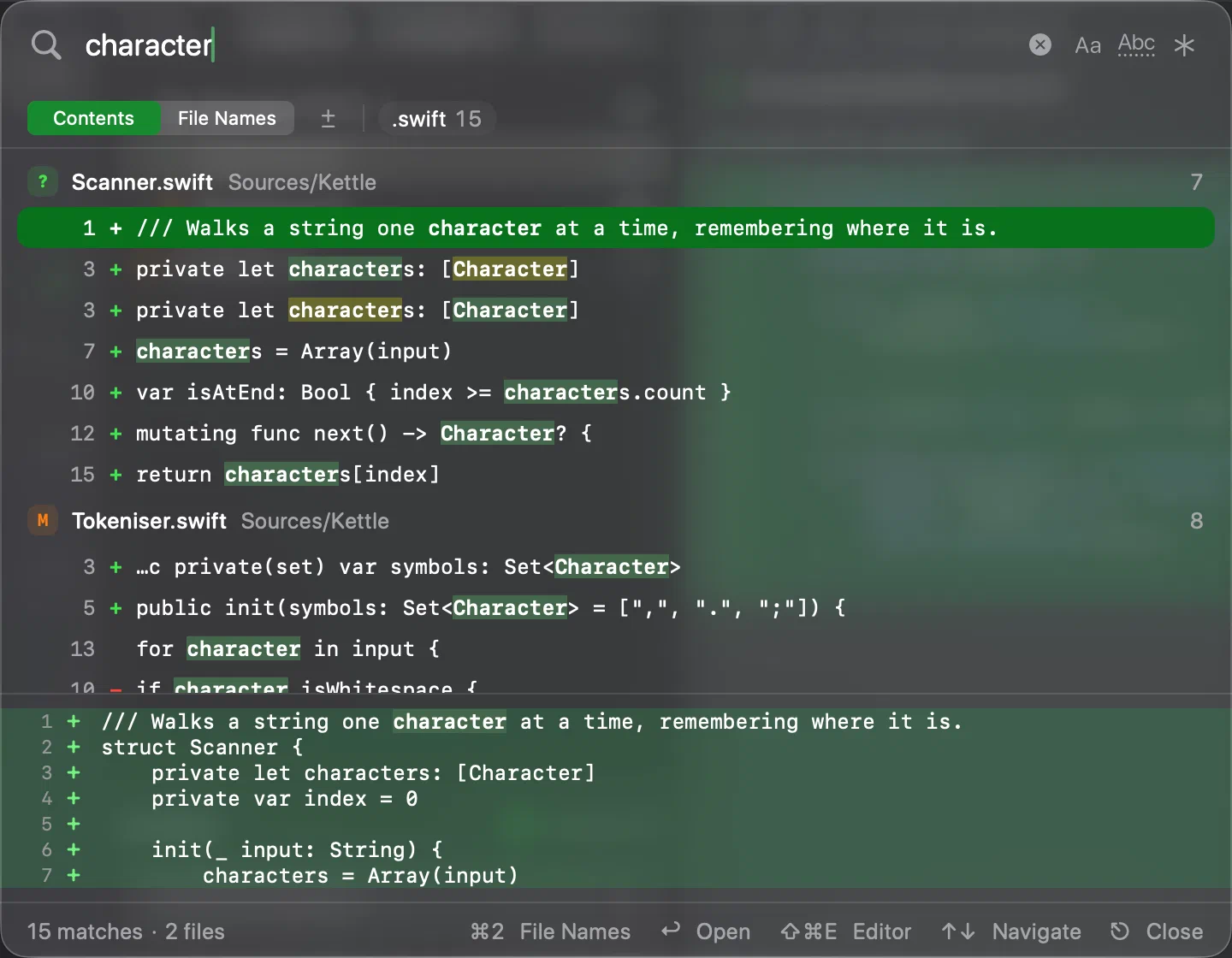
Contents or file names
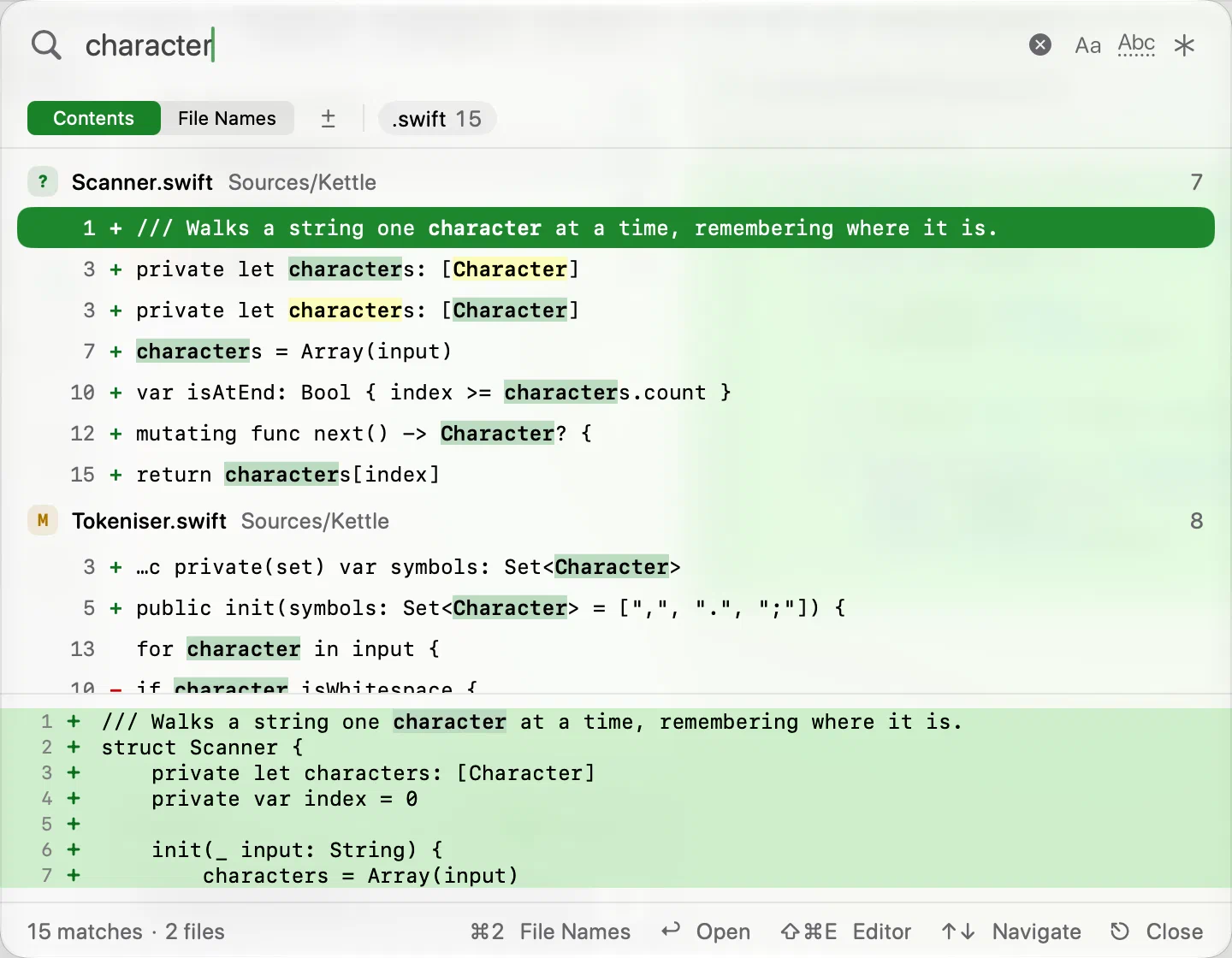
In Contents, type the text you want to find. Results update as you type, with a preview of the selected match. Use the arrow keys to move through results and Return to open one in the Working Copy diff. If an unchanged line is outside the current diff context, Innesta temporarily shows the whole file to reveal it. Selecting another file restores your saved context.
⇧⌘O opens the same panel in File Names mode. Type part of a name or path; close matches are ranked so you can find a changed file without knowing its full path. Return selects the file in the Working Copy list.
You can switch modes inside the panel. Escape closes it and returns focus to where you were.
Narrowing the results
- Match Case distinguishes upper and lower case.
- Whole Word matches a complete word.
- Regular Expression treats the query as a regular expression within each line.
- Changed Lines Only leaves out unchanged lines.
Only Match Case applies in File Names mode. These options are kept across launches; the query and file filters last for the window’s session.
Add file patterns to the query to limit where it searches: *.swift includes
Swift files, !*.min.js excludes minified JavaScript, and **/tests/**
restricts it to test folders. Space, Return or Tab adds a pattern as a filter
inside the field. If Return has just added a filter, press it again to open the
selected result. A filter’s menu can change it between including and excluding
files, or remove it.
With Regular Expression on, a valid expression stays search text instead of becoming a file filter.
The file-type chips offer the same filters. Click one to include that type, click again to remove it, or Option-click to exclude it. You can include more than one type. Exclusions take priority.
Opening in your editor
With a result selected, ⇧⌘E opens it in your external editor at the match, when the file still exists and the editor supports opening at a position. A removed line opens at the next surviving line, or the last line in the file. Deleted files can be read in the diff but cannot be opened in an editor.
When results are incomplete
This is a search of readable text. The panel explains skipped files, such as binary files, symbolic links, submodules or files that are too large. It also reports when a result limit has been reached. Narrow the query or add file filters when that happens.