Editing history
Reorder, combine, reword or remove the commits on your branch, and see the result before it is applied.
Edit History… rewrites the commits on the branch you are on. You change their order, combine some, reword a message or take a commit out, see what the result will be, and only then apply it. Underneath it is Git’s interactive rebase, laid out as a list.
Opening it
Repository ▸ Edit History… (⌥⌘E), also in the Command Palette, opens the commits your branch has and its upstream does not, after the newest merge. It needs a branch that is ahead of its upstream; for one you have never pushed, start from History instead.
In History, a commit’s context menu has an Edit History submenu.
Edit Message…, Combine with Previous Commit… and
Remove Commit… open the editor with that one change already made, one
Undo away from the original. Edit History from Here… opens it on every
commit from that one to the latest, which is how to reach commits you have
already pushed. When a commit cannot be edited, the submenu says why.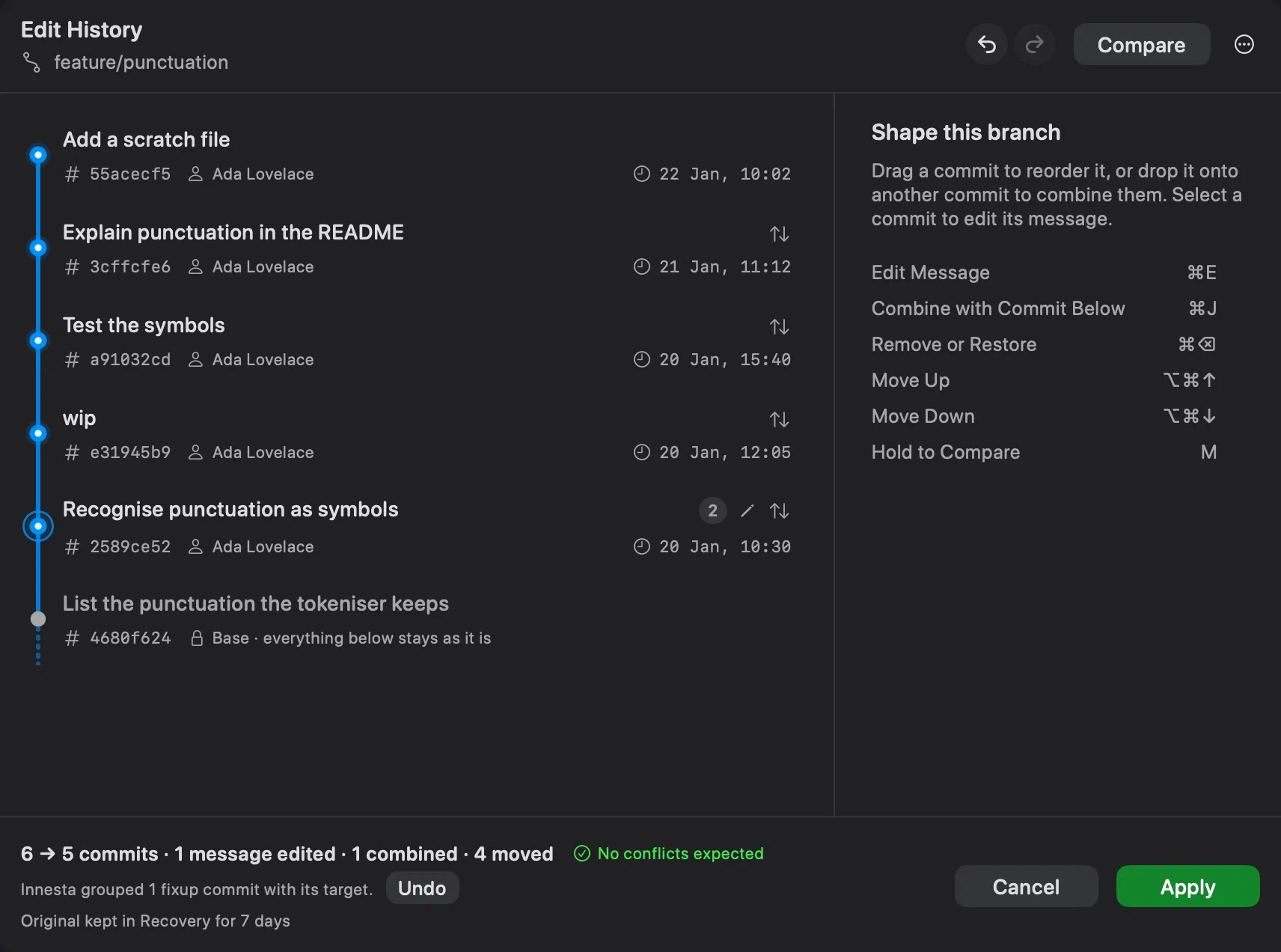
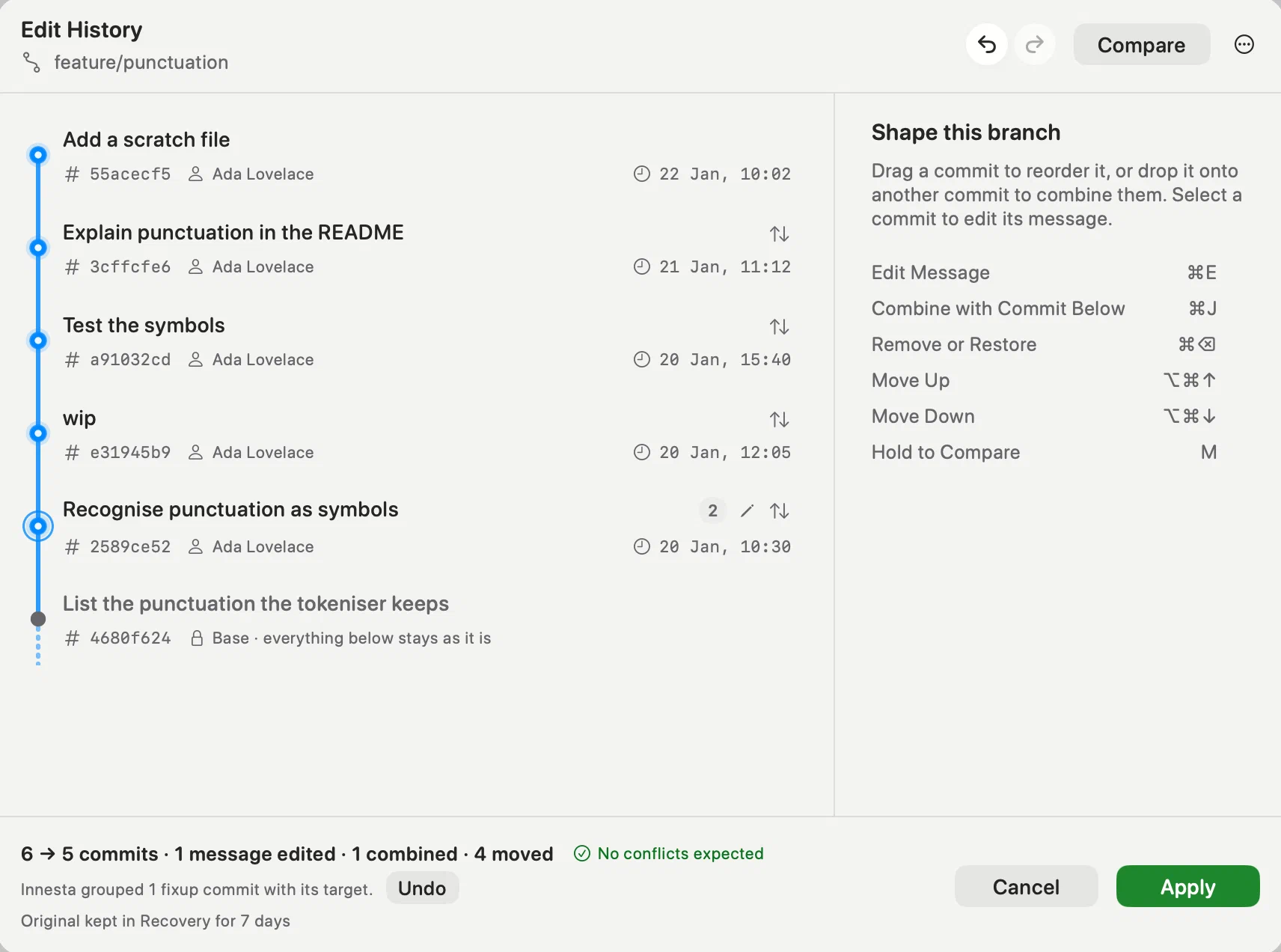
The list reads like History, newest at the top. The row below the last commit is the base, Base · everything below stays as it is: the plan never moves it. Whatever History happens to be filtering, the list always ends at the branch’s latest commit.
Changing the plan
- Move a commit by dragging it between two others, or with ⌥⌘↑ and ⌥⌘↓.
- Combine commits by dragging one onto another, or with ⌘J, Combine with Commit Below. Select several first to combine them all. The row shows how many commits it holds, and Split Group, in More Actions, separates them again. A combination’s message starts as its commits’ messages one after another, oldest first, which is usually worth editing.
- Reword a message by double-clicking the commit or pressing Return: the message opens in the inspector on the right. Done, or ⌘↩, keeps it; Revert, or Escape, puts back what was there. Reset Message returns to the original later.
- Remove a commit with Remove Commit, in More Actions. It stays in the list, struck through and marked Removed, until Restore Commit in the same place puts it back.
Each row shows what has changed about it: a pencil for a new message, and arrows when its place among the other commits is different — as it is for every commit a combination has passed on its way down.
⌘Z and ⇧⌘Z undo and redo changes to the plan, and Start Over, in More Actions, discards them all. Hold Compare, or the M key, to see the original order, and let go to return to yours.
The keys act on the list. The inspector shows them while nothing is selected, and with several commits selected it lists the ones that apply.
Fixups arrive combined
Opened from the menu or with Edit History from Here…, a commit whose
subject is fixup! or squash! followed by the subject of an earlier commit
arrives already combined with it, the way Git’s
autosquash treats it. A note under the list says
so, with Undo to separate them. A fixup keeps its target’s message; a
squash adds its own message below.
Before you apply
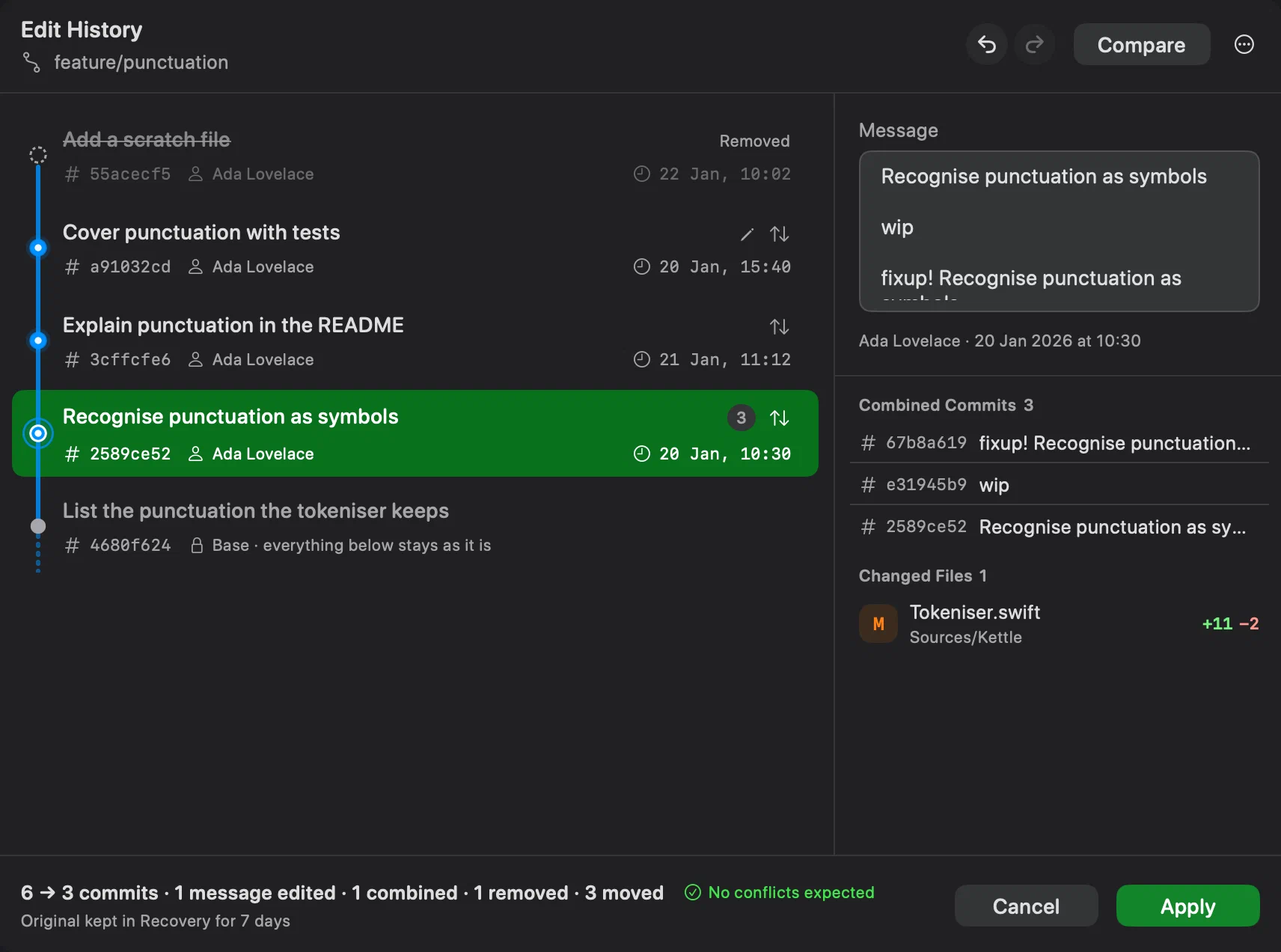
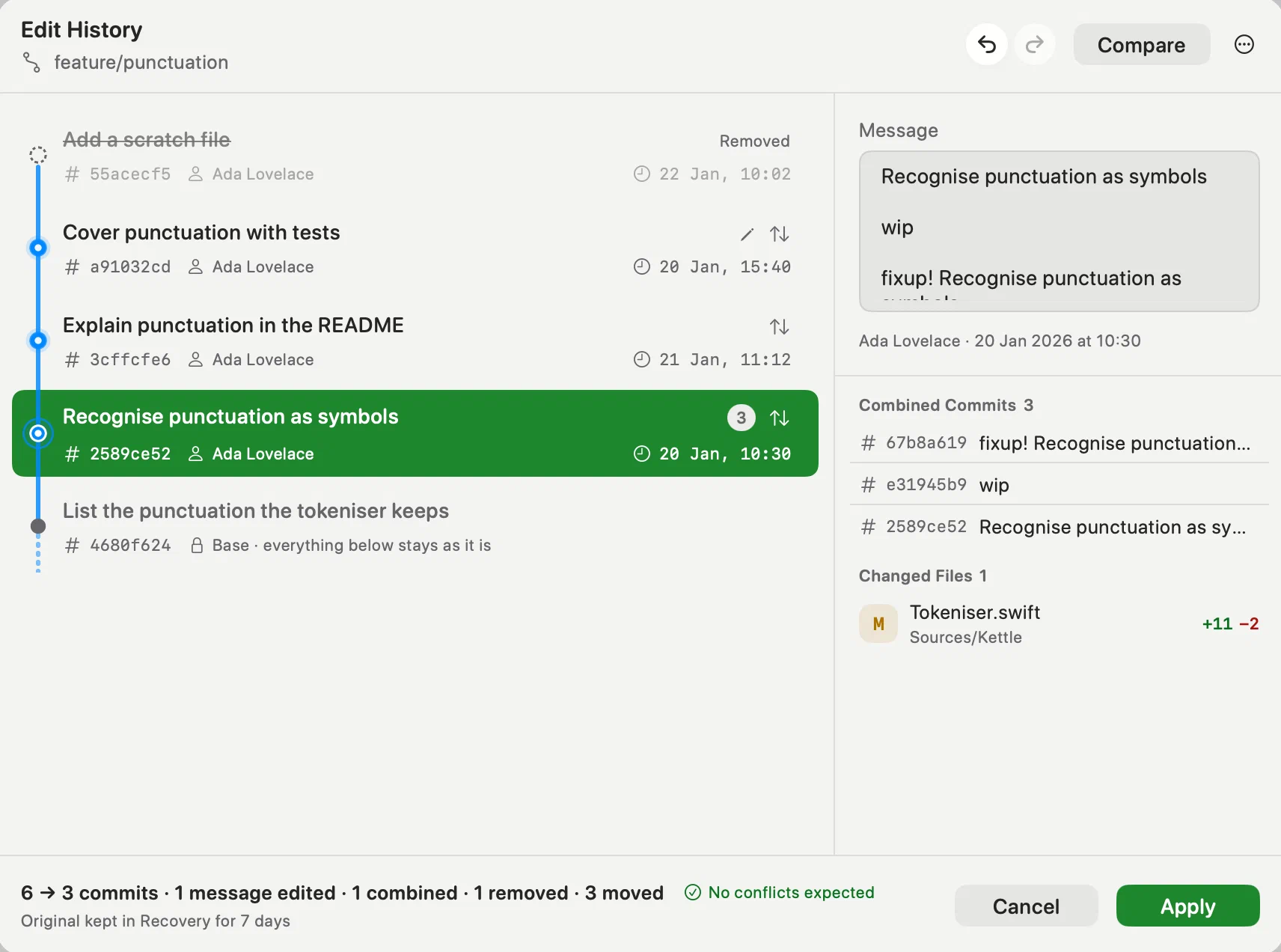
The inspector shows the selected commit: its message, hash, author and date, the commits a combination holds under Combined Commits, and Changed Files with their line counts.
The footer sums the plan up and says what Innesta expects when it runs: No conflicts expected, a number of expected conflicts, or Prediction unavailable. A commit that would stop is marked Conflict expected or May conflict in the list, and the inspector names its files under Expected Conflicts or Possible Conflicts. It is a prediction, worked out before anything changes, not a promise.
- Local changes, untracked files included, are stashed before the rewrite and put back after it. Ignored files are not: if the rewrite would replace one you have locally, Edit History refuses until you move it out of the repository.
- Commits already on a remote sit below an Already pushed divider. Changing one turns Apply into Rewrite History, and sending the result needs a force push with lease.
- If the branch or the working copy changes while the editor is open, the plan stops taking changes until you press Reload. With the same commits still there, your changes are kept and only Undo starts again; otherwise the editor starts over.
Apply asks nothing further: the list was the confirmation. Afterwards History shows the new commits, and the notification that says so offers Restore Original….
If it stops
A commit that conflicts pauses the rewrite in Working Copy, the way a rebase stops: resolve the files, then Continue, or Abort to leave the branch as it was. When a merge conflicts covers what is particular to Edit History. Committing and amending wait until it has finished or been abandoned.
Getting the original back
Innesta keeps the branch as it was before the rewrite, for as long as Keep recovery backups says. See restoring the original history.
What it does not do
- Merge commits. The range starts after the newest merge on the branch.
- The repository’s first commit, and more than 500 commits at once.
- Splitting a commit into several. That is still
git rebase -i, with aneditstop — see what Innesta does not do. - Moving the commits onto another base. The base stays where it is; rebasing is the way to replay a branch on top of another.